Appearance
Transmittal Types
Normal Transmittal
A standard outgoing transmittal to send documents to other companies.
Creating a Normal Transmittal
- Navigate to "Send Transmittal" in the sidebar, or select documents in the registry and click "Create Transmittal".
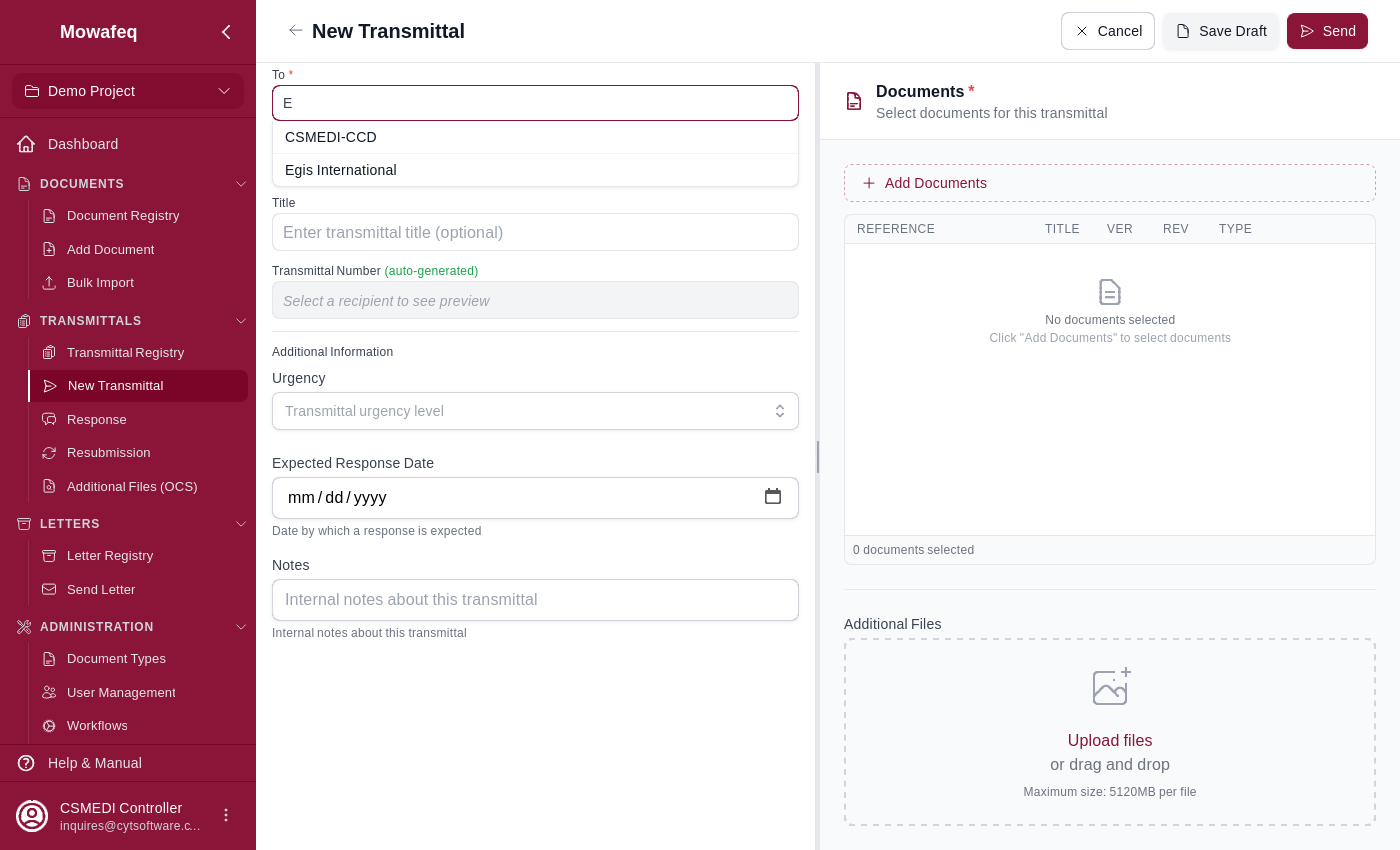
Select Receivers (required): Choose one or more recipient companies from the project.
Select CC Receivers (optional): Choose companies that should receive view-only copies.
Enter Title (required).
Add Documents (at least one required): Select from the document registry or create new documents inline.
Upload Additional Files (optional): Attach supplementary files like cover letters or transmittal sheets.
Fill Custom Fields (if configured): Complete any project-level custom fields.
Click "Send" to send immediately, or "Save as Draft" to continue later.
Response Transmittal
Created when responding to documents in a received transmittal.
Creating a Response
- From the dashboard inbox "Action Required" tab or a transmittal's detail page, click "Respond".
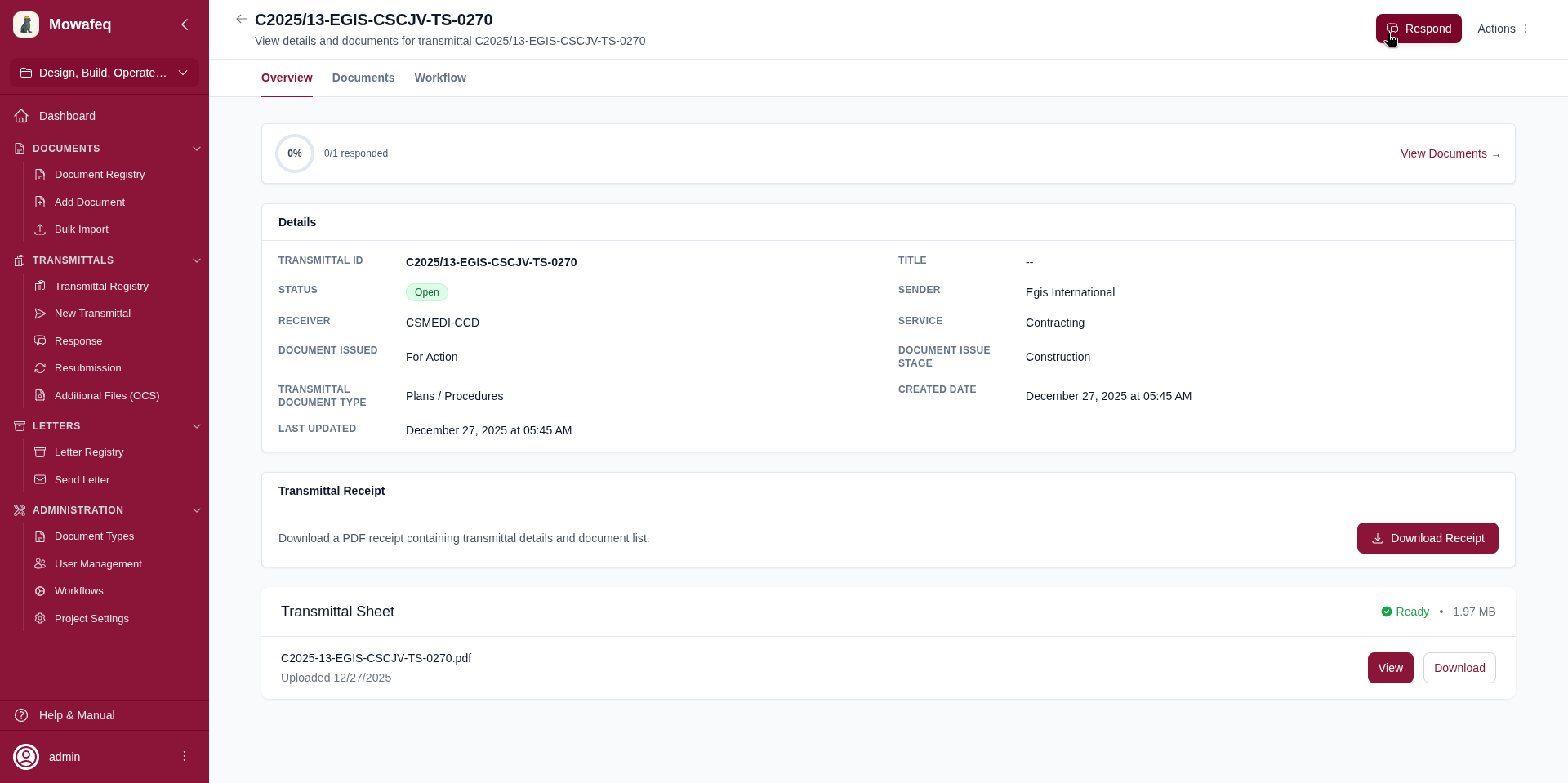
- The receiver is pre-set to the original sender. The title is auto-prefixed with "RE:".
- For each document in the original transmittal, set:
- Response Status (required): Select from project-configured options (e.g., "Approved", "Approved with Comments", "Revise and Resubmit", "Rejected").
- Comment (optional): Add review notes.
- Response Document (optional): Attach a revised or annotated version.
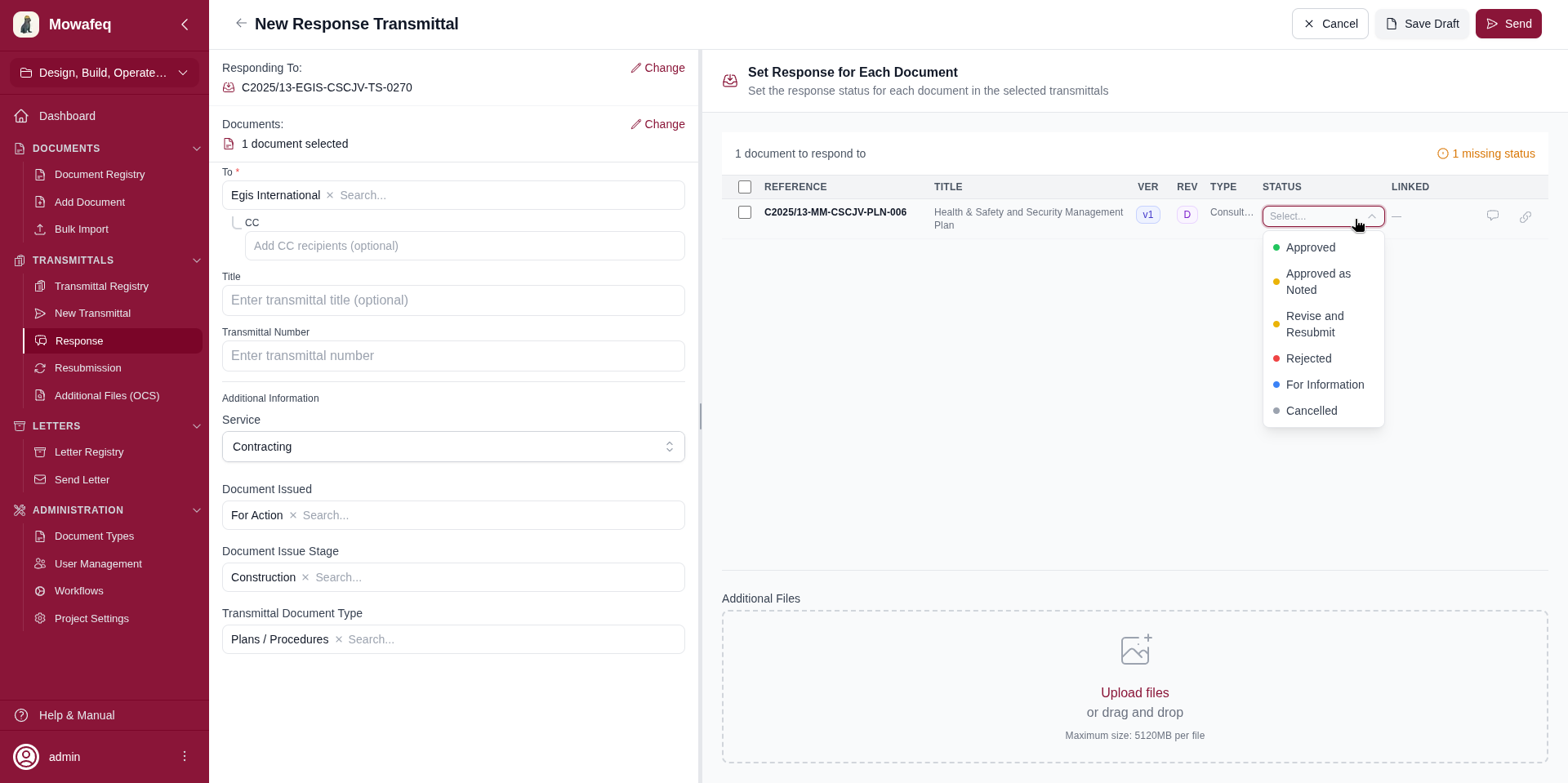
- Optionally add new documents to the response transmittal.
- Click "Send" or "Save as Draft".
Important Notes
- Only companies listed as receivers of the original transmittal can respond.
- You cannot respond to a transmittal that is itself a response.
- Each document can only have one final (non-draft) response across all companies.
- When the response is sent, documents are automatically updated: statuses configured to close documents (e.g., "Approved") set the document stage to Closed, while others (e.g., "Revise and Resubmit") keep documents Open.
Resubmission Transmittal
Created when re-sending documents to the same receivers (e.g., after revising rejected documents).
Creating a Resubmission
- Navigate to "Send Resubmission" in the sidebar.
- Select the original transmittal from the list of eligible transmittals.
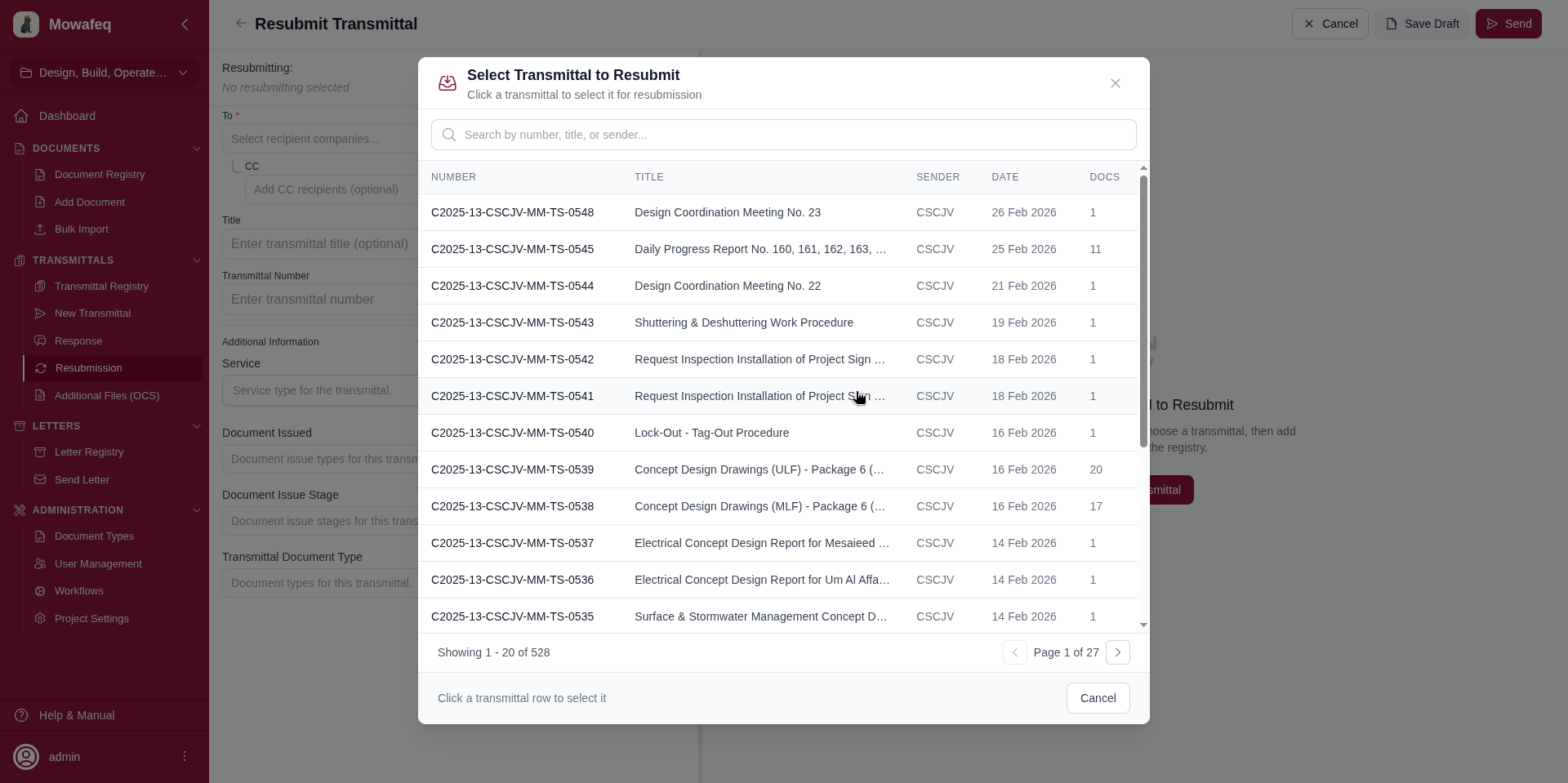
- Receivers are pre-set to the original transmittal's receivers.
- Attach the updated/revised documents.
- Click "Send" or "Save as Draft".
Constraints
- Only the original sender company can create a resubmission.
- The original transmittal cannot be a response transmittal.