Appearance
Mowafeq AI Agent
The Mowafeq AI Agent is a project-scoped chat that answers questions about documents stored in the project registry. It uses retrieval (hybrid full-text + semantic search over indexed document chunks) to produce answers grounded in citations that link back to the source files.
Video Walkthrough
Configure AI Agent access and permissions.
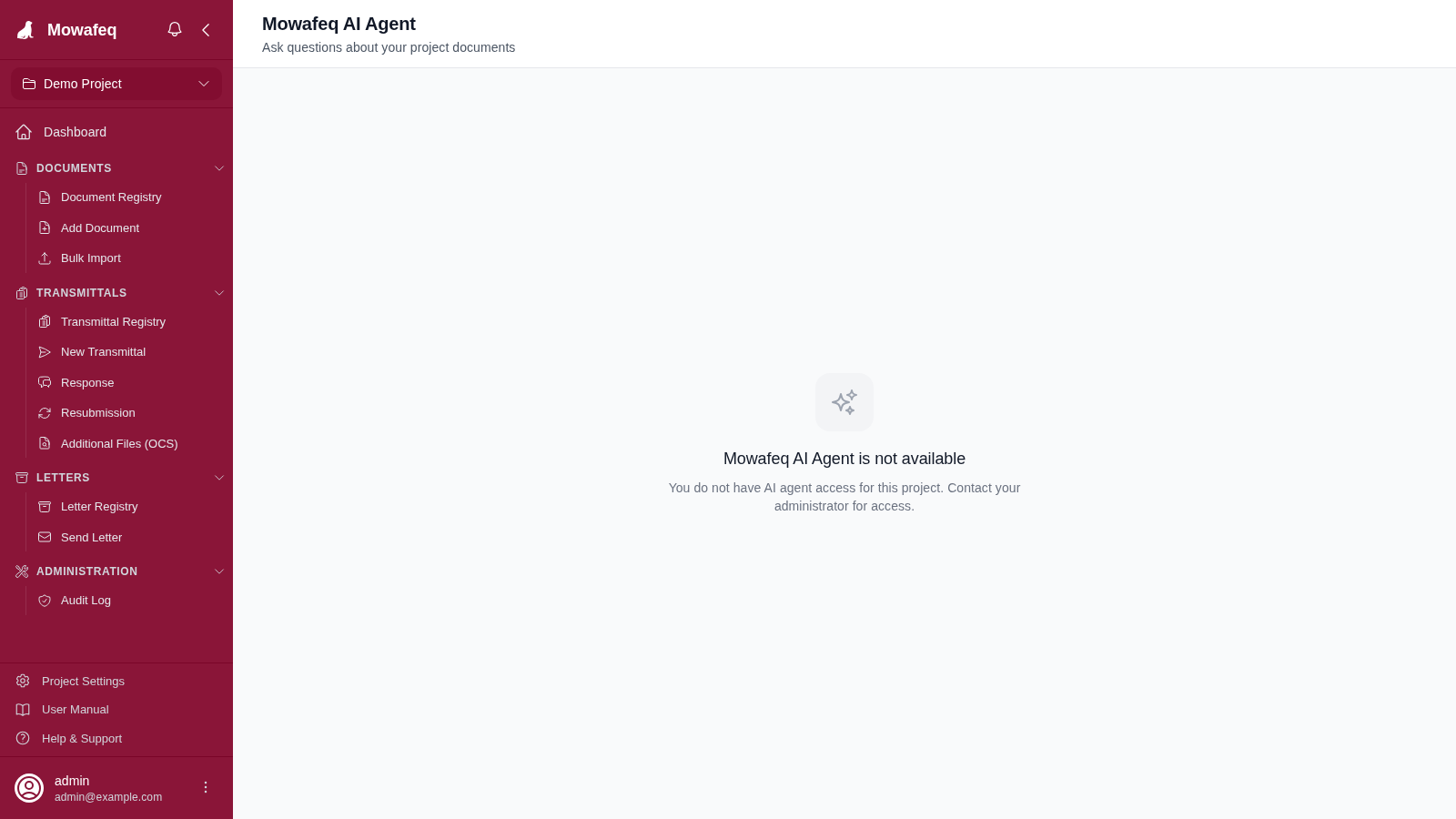
Availability: The assistant is only reachable when (a) the project's master AI switch is enabled by a system administrator, and (b) the current user has been granted AI access in Project Settings → AI Access. If either is false, the /ai route shows a "not available" screen and the launcher surfaces described below are hidden.
Opening the Assistant
There are three ways to open the assistant from anywhere in the app:
- Pinned "Mowafeq AI" entry at the top of the left sidebar (above the Dashboard link). Click to open.
- Floating "Ask Mowafeq AI" pill fixed at the bottom-right of every page, hidden automatically while you are already on an AI route.
Cmd+K(macOS) /Ctrl+K(Windows/Linux) from anywhere in the app opens the assistant. Inside the AI page the same shortcut opens the in-page command palette.
Interface Layout
The AI page has three main areas:
- Chat sidebar (left) — grouped list of your previous sessions, a "+ New Chat" button, a search input, and a "Quick switch ⌘K" hint.
- Chat area (center) — the conversation with an auto-growing composer at the bottom.
- Usage badge (page header) — shows your remaining queries for the current month (e.g.,
13 / 20 queries). - Citation drawer (right, desktop only) — a side panel that shows the source PDF for the currently-opened citation. Collapses to a thin "Sources" rail.
Chat Sessions
Each conversation is stored as a session with its own URL (/ai/{sessionId}), private to the user that created it and scoped to the current project. Refreshing the page restores the conversation.
- Creating a session: From
/ai(landing), just start typing — the session is auto-created on the first send. - Switching sessions: Click any session in the sidebar, or use
Cmd+Kto fuzzy-search and jump. - Date groups: Sidebar sessions are bucketed by
updated_atinto Today, Yesterday, Previous 7 Days, and Older. - Auto-titles: Sessions are automatically titled based on your first question.
- Inline rename: Hover a session row and click the pencil icon to rename.
- Deleting a session: Hover a session, click the trash icon, confirm in the modal.
Asking Questions
Type a question in the composer at the bottom of the chat area. Enter sends, Shift+Enter inserts a newline. The textarea auto-grows and shrinks as you type.
Retrieval scope: By default, the assistant searches all indexed documents in the current project. When you open the assistant from a document detail page via an "Ask AI about this document" link, the session is silently scoped to that document.
Quota check: Before sending, the page checks your remaining monthly queries. If you have hit your limit, the composer is disabled until the counter resets at the start of the next calendar month or an administrator raises your limit.
Reading Answers and Citations
Assistant responses are rendered as formatted Markdown and may include:
- Inline citation markers like
[1],[2]embedded in the answer text. Clicking a marker opens the source PDF in the citation drawer, jumped to the relevant page. - Grouped citation cards below the assistant message: one card per source document, listing the page ranges the answer drew from. Click any card to open the source in the drawer.
Citation drawer:
- Desktop (≥ lg): Opens as a collapsible side panel to the right of the chat. Collapses to a 40 px vertical rail labelled "Sources".
- Mobile (< lg): Opens as a full-screen modal. Close via the X button or the Esc key.
Document Indexing
Before a document's contents can be retrieved by the assistant, the document must be indexed by the background worker. Indexing happens automatically when:
- A new file is uploaded to a document, and
- The project has AI Indexing enabled in Project Settings, and
- The file is a supported type (currently PDFs with embedded text).
Indexing extracts text, splits it into overlapping chunks, and stores both a full-text index and vector embeddings. Scanned or image-only PDFs are marked unsupported because no OCR is built in.
Usage and Quotas
Each user has a monthly query allowance set by the project administrator (default 20 queries per calendar month, configurable per user, or unlimited if set to 0).
- The usage badge in the page header shows
<remaining> / <limit> queriesfor the current calendar month. - Counters reset automatically on the first day of each calendar month.
- When you reach your limit, the composer is disabled until the next reset or until an administrator raises your limit in Project Settings → AI Access.
Disabled States
The AI page displays a "not available" screen in two cases:
- AI not enabled for the project: A system administrator has not turned the AI master switch on for this project. Contact your administrator.
- AI not enabled for your user: The master switch is on for the project but your individual access has not been granted (or has been revoked). Contact your project administrator to request access.
When either state is active the sidebar "Mowafeq AI" entry and the floating pill are both hidden.
Command Palette (Cmd+K)
Inside the AI page, Cmd+K opens a command palette that fuzzy-searches your sessions by title. The first option is always "Start a new chat"; below it are sessions filtered by the current query, each showing a relative date subtitle. Arrow keys navigate; Enter selects.
Outside the AI page the same shortcut jumps to /ai, matching the floating pill.