Appearance
Revisions & Versions
Documents support two independent dimensions of change tracking.
Revisions
Revisions represent substantive content changes (e.g., moving from draft to issued, or incorporating review comments).
- Revision numbers auto-increment and display as letters (A, B, C...) or numbers (00, 01, 02...) depending on the project's revision format setting.
- New revisions inherit the reference number from the original document.
- Only one revision is "current" at any time.
Creating a Revision
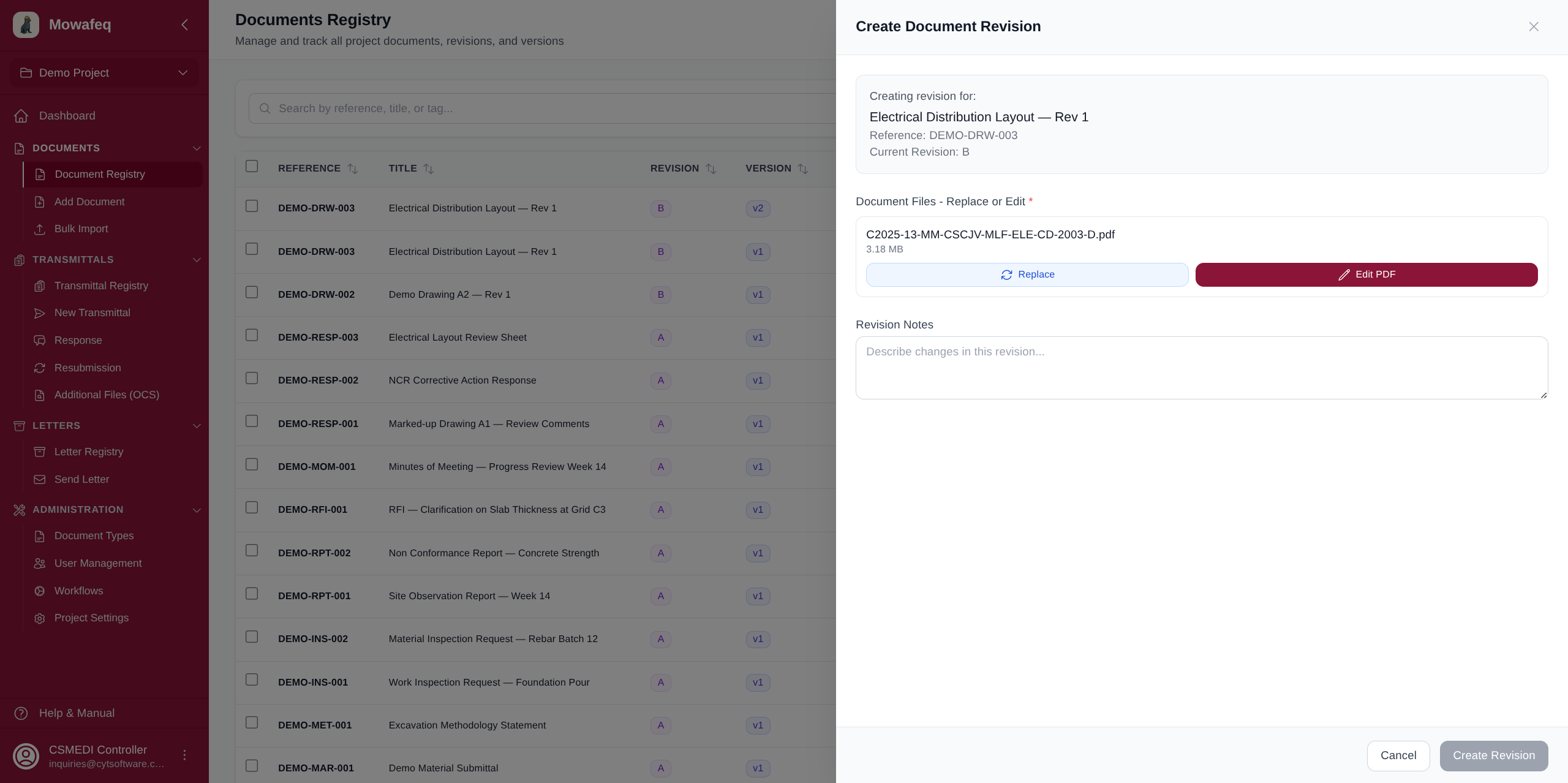
- From the document registry, click the three-dot menu on a document row and select "Create Revision".
- A slideout panel appears showing the document's current files.
- Replace at least one file by clicking the upload area next to it, or edit a PDF using the in-browser PDF editor.
- Optionally add revision notes describing the changes.
- Click "Create Revision".
Versions
Versions represent alternative representations of the same revision (e.g., a translated copy, an annotated copy).
- Version numbers auto-increment per revision (1, 2, 3...).
- Only one version is "current" per revision.
- Created using the same process as revisions, via "Create Version" in the row action menu.
Viewing History
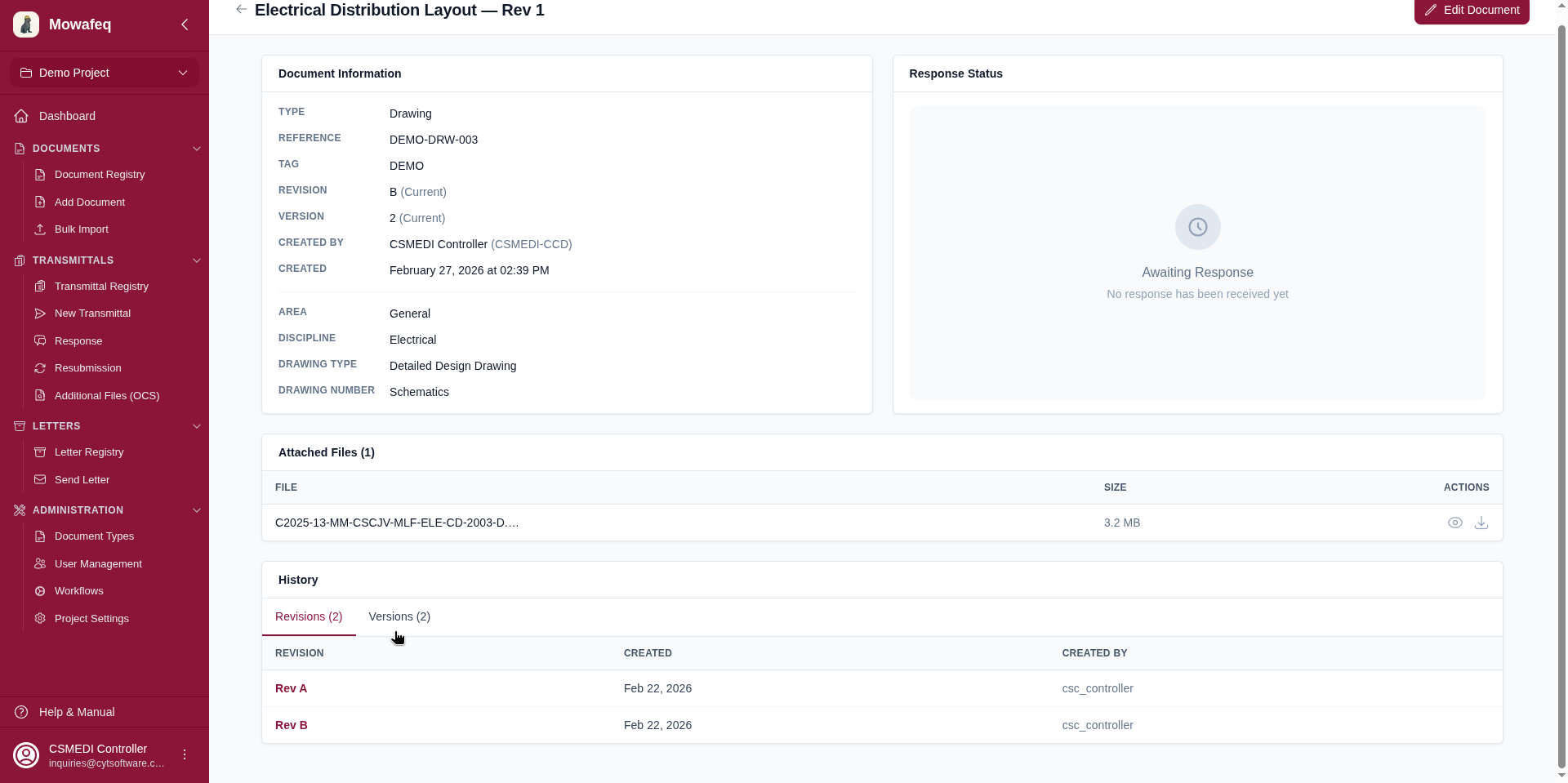
On the document detail page, a History card shows two tabs:
- Revisions tab: Lists all revisions with revision letter/number, creation date, and creator. Click any non-current revision to navigate to its detail page.
- Versions tab: Lists all versions with version number, creation date, and creator.