Appearance
Sending a Letter
Navigating: Click "Send Letter" in the sidebar or use the Quick Actions dropdown.
Video Walkthrough
Compose and send letters from within Mowafeq.
Step-by-step
- Select Receivers (required): Choose one or more recipient companies.
- Enter Subject (required): Maximum 255 characters.
- Enter Letter Reference (required): A unique reference number for this letter (max 100 characters, must be unique within the project).
- Enter Keywords (optional): Keywords for search purposes.
- Select Purpose (required): Choose "For Action" or "For Information" (see below).
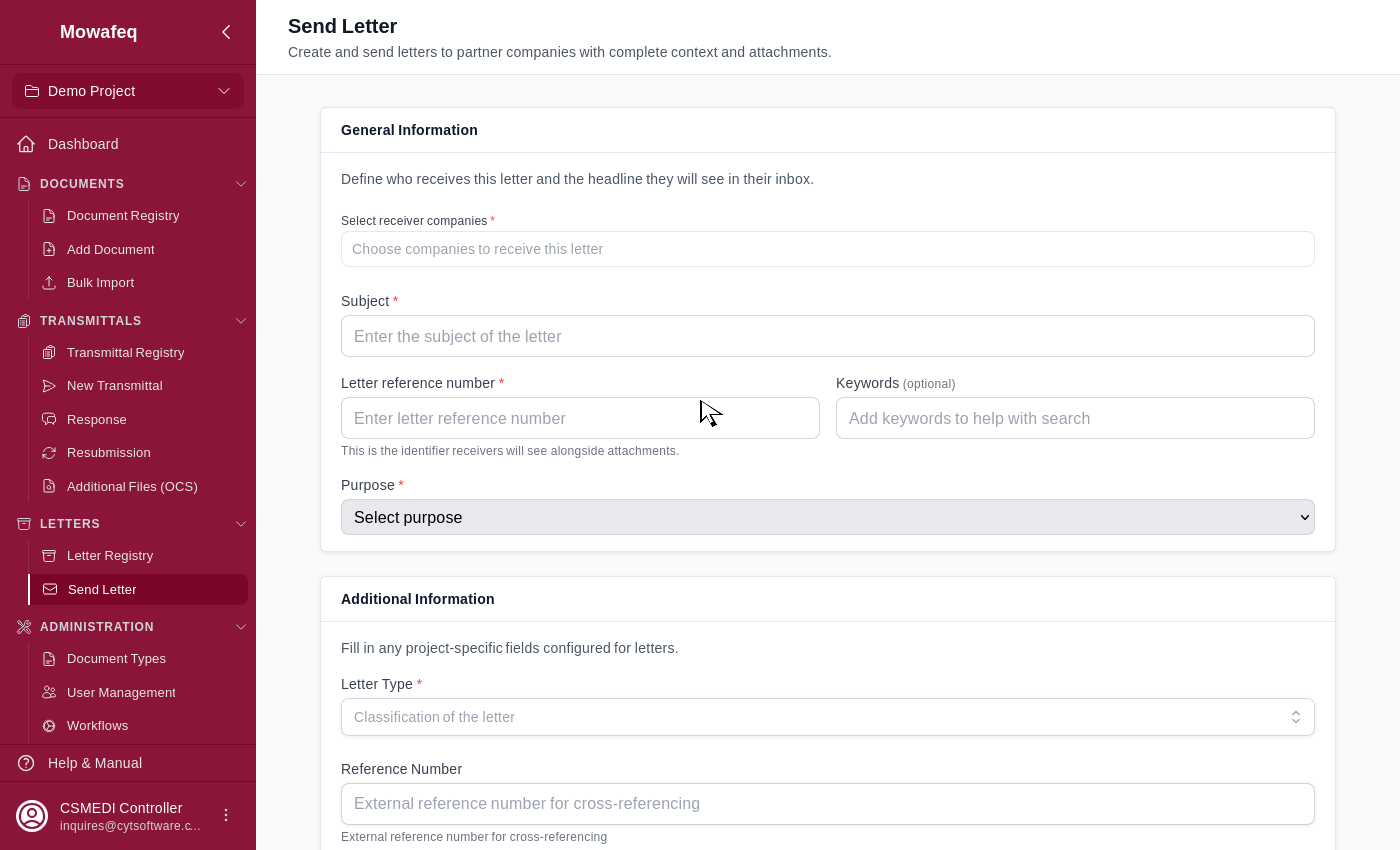
Fill Custom Fields (if configured): Project-level custom fields.
Upload Attachments (at least one required): Attach one or more files.
Link to Parent Letter (optional): Check "This letter responds to an earlier correspondence" to select a parent letter. This makes the new letter a reply.
Click "Send Letter".
After sending, a success screen shows options to "Create Another Letter" or "View Letter".
Letter Purpose
Each letter has a purpose that determines how it can be resolved:
For Action: The receiver must reply with a formal response letter to close this letter. The "Reply" action is available on the detail page.
For Information: The receiver can close this letter by clicking "Acknowledge" (no reply needed). A formal reply is also accepted.