Appearance
Document Registry
The document registry is the central list of all documents visible to your company within the current project.
Video Walkthrough
Understand the document registry interface and how to manage documents.
Navigating to the registry: Click "Documents Registry" in the sidebar or use the Quick Actions dropdown.
Columns
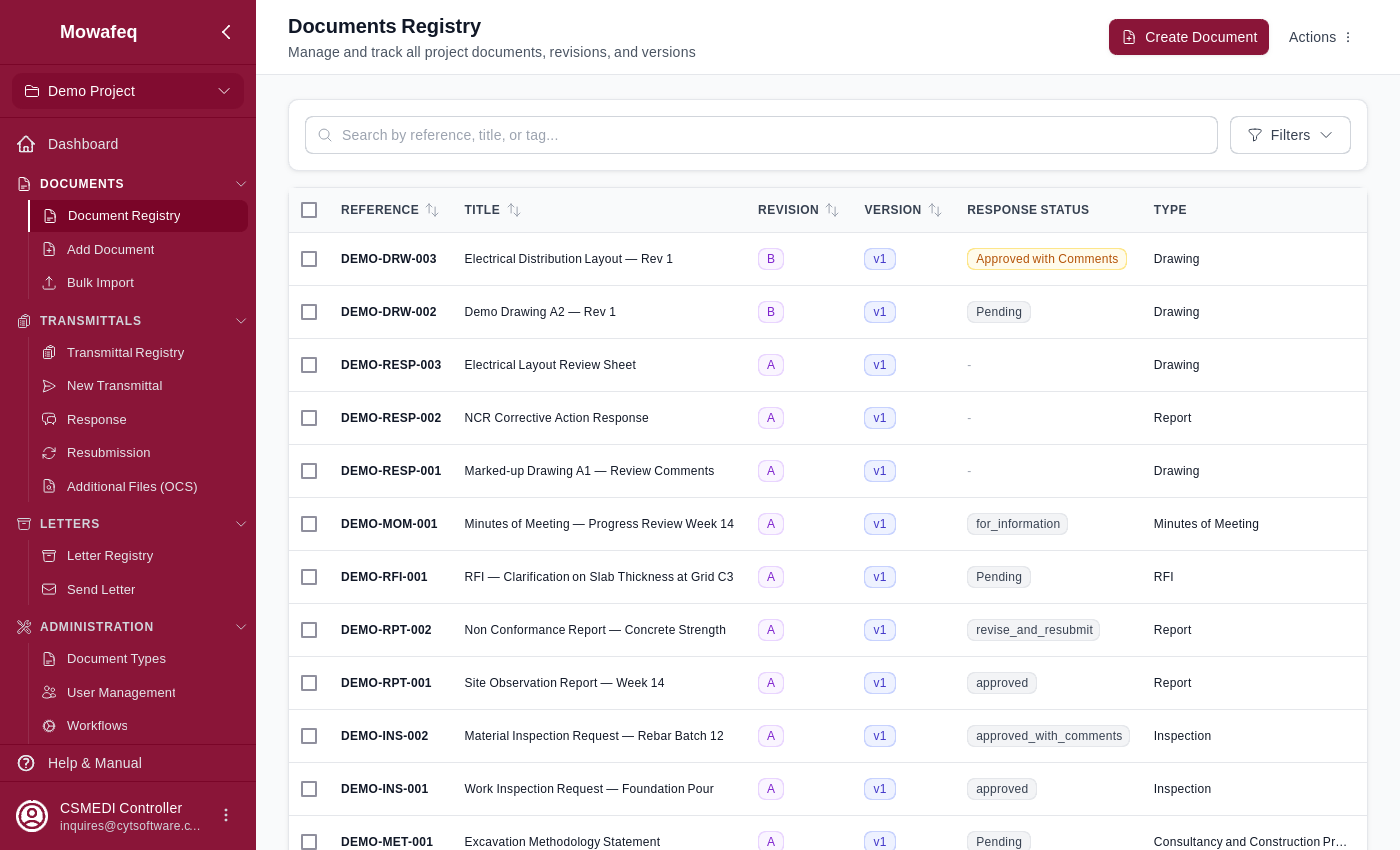
The default columns are:
| Column | Description | Sortable | Filterable |
|---|---|---|---|
| Reference | Auto-generated or manual document reference number | Yes | Yes |
| Title | Document title | Yes | Yes |
| Tag | Optional grouping tag | Yes | Yes |
| Stage | Open or Closed | Yes | Yes |
| Superseded | Whether the document has been superseded | Yes | Yes |
| Type | Document type (e.g., Shop Drawings) | - | Yes |
| Created | Date the document was created | Yes | - |
| Creator | User who created the document | - | Yes |
| Version | Current version number | Yes | Yes |
| Revision | Current revision letter or number | Yes | Yes |
Additional columns may be visible depending on project configuration:
- Response Status and Response Comment from transmittal responses.
- Custom field columns defined in Project Settings.
Column visibility and order are configured by Document Controllers in Project Settings.
Search
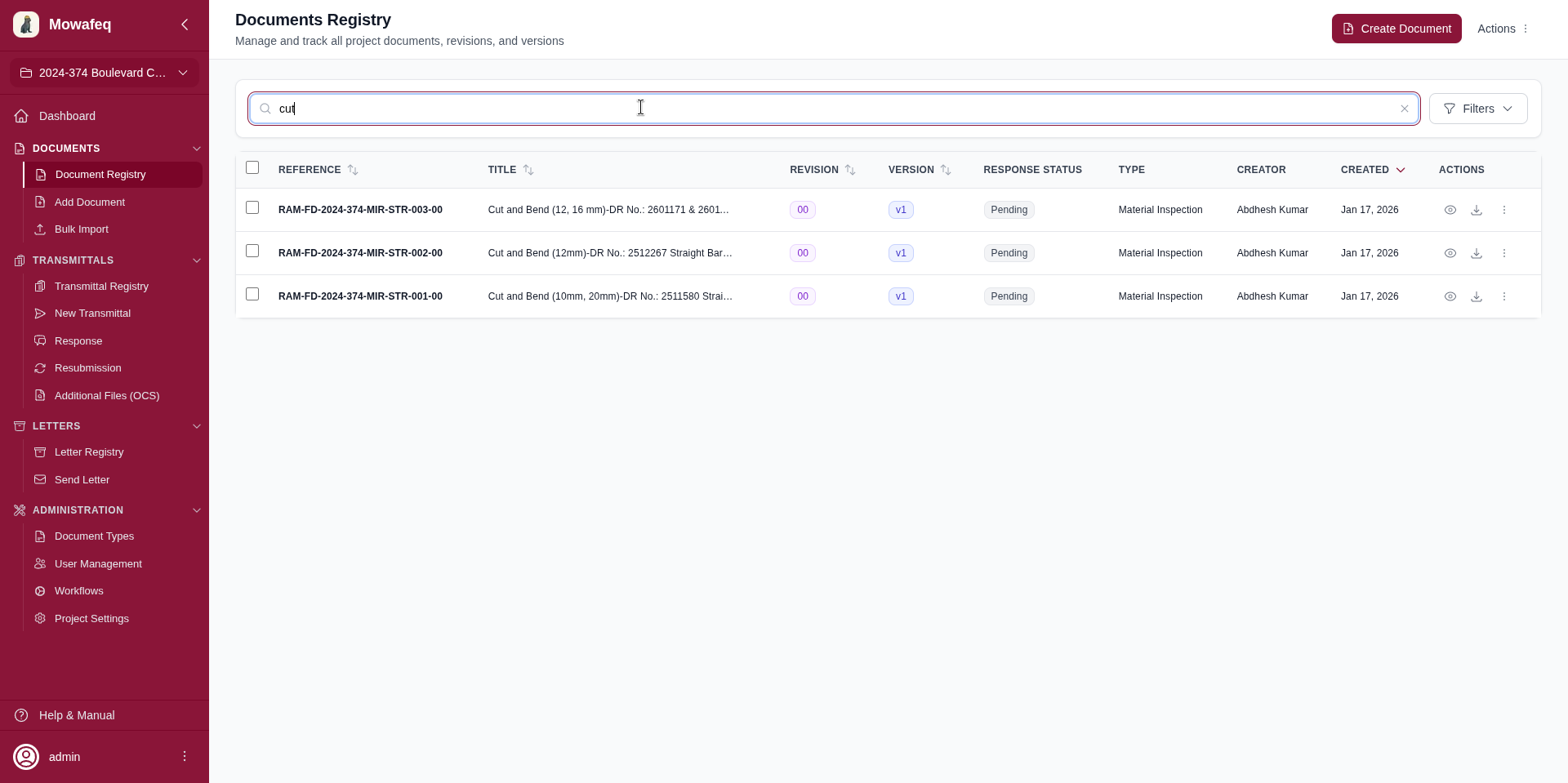
The search box at the top searches across reference number, title, and tag simultaneously.
Filtering
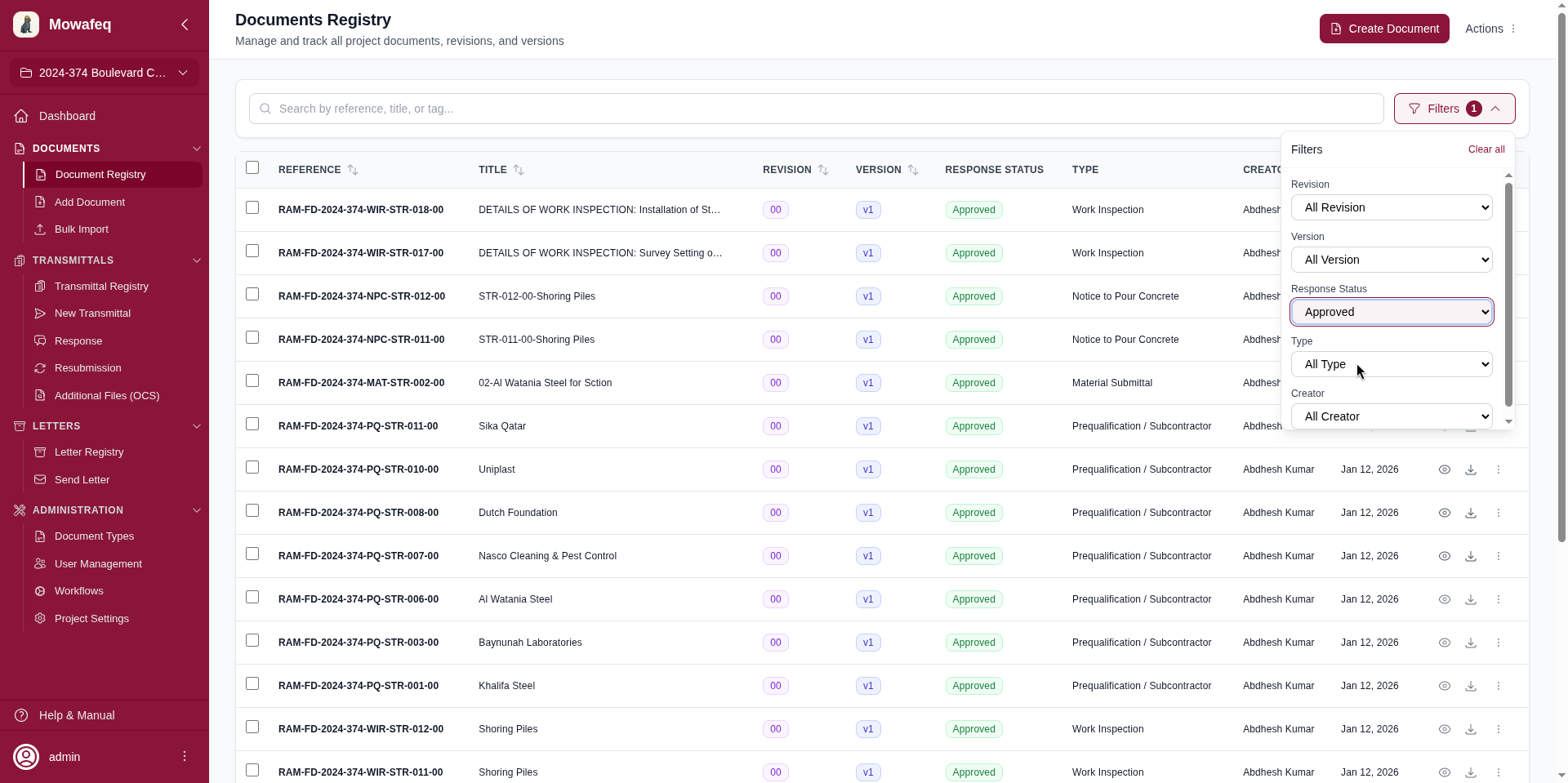
Click the "Filters" button to reveal per-column filter controls. Each filterable column has a dropdown of available values. The button shows a badge with the number of active filters. Click "Clear all" to reset all filters.
Sorting
Click any sortable column header to sort. An arrow indicator shows the current sort direction. Click again to reverse. Default sort: newest first.
Pagination
Choose between 10, 20, 50, or 100 items per page using the dropdown at the bottom. Page navigation buttons include First, Previous, numbered pages, Next, and Last.
Export
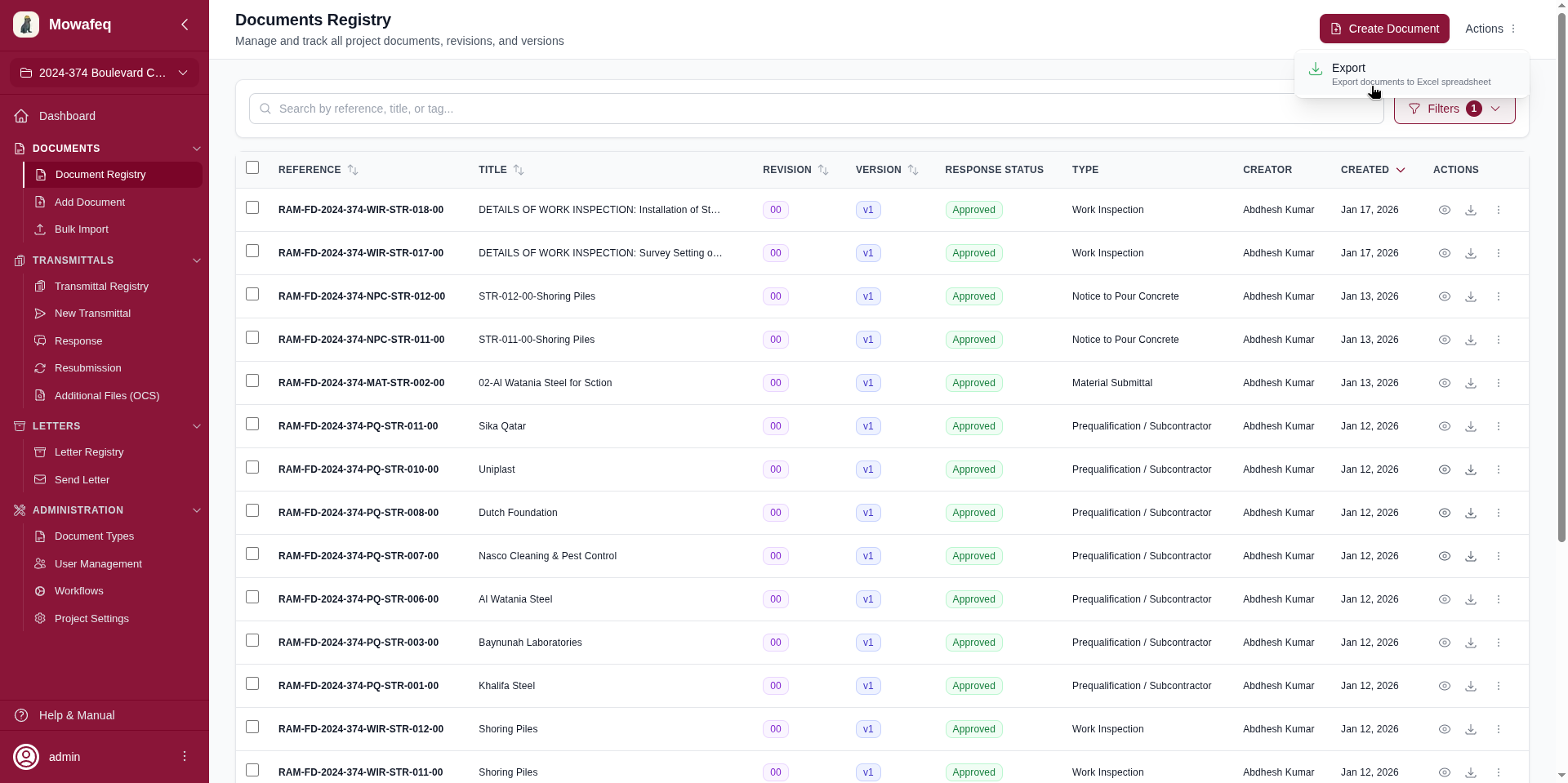
Click "Export" in the page header to download all documents matching the current search and filters as an Excel spreadsheet. The export is not limited by pagination.
Row Actions
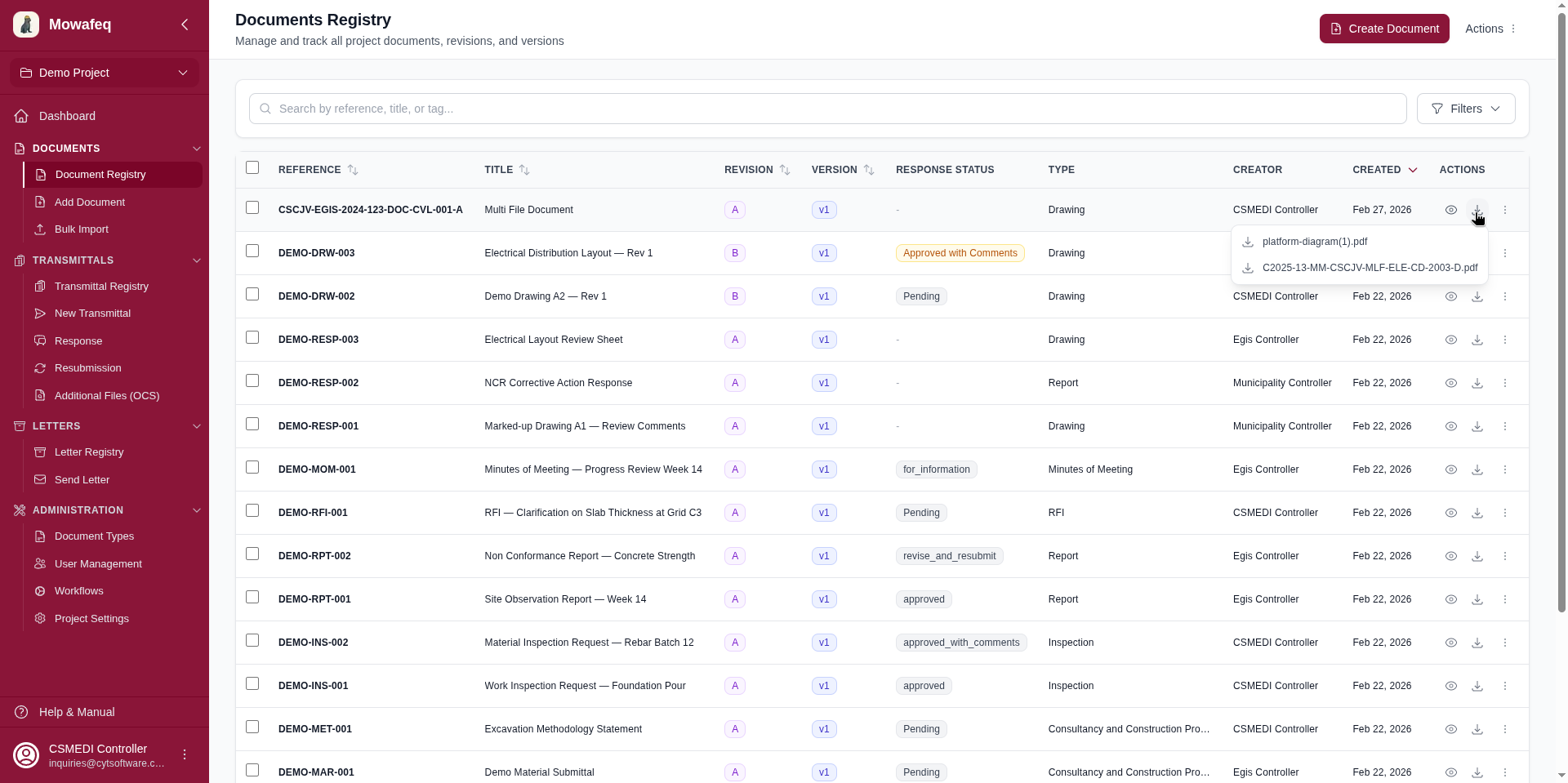
Each row has file action buttons and a three-dot menu:
File actions:
- If a document has one file: View (eye icon) and Download buttons.
- If multiple files: Separate dropdown menus for viewing and downloading individual files.
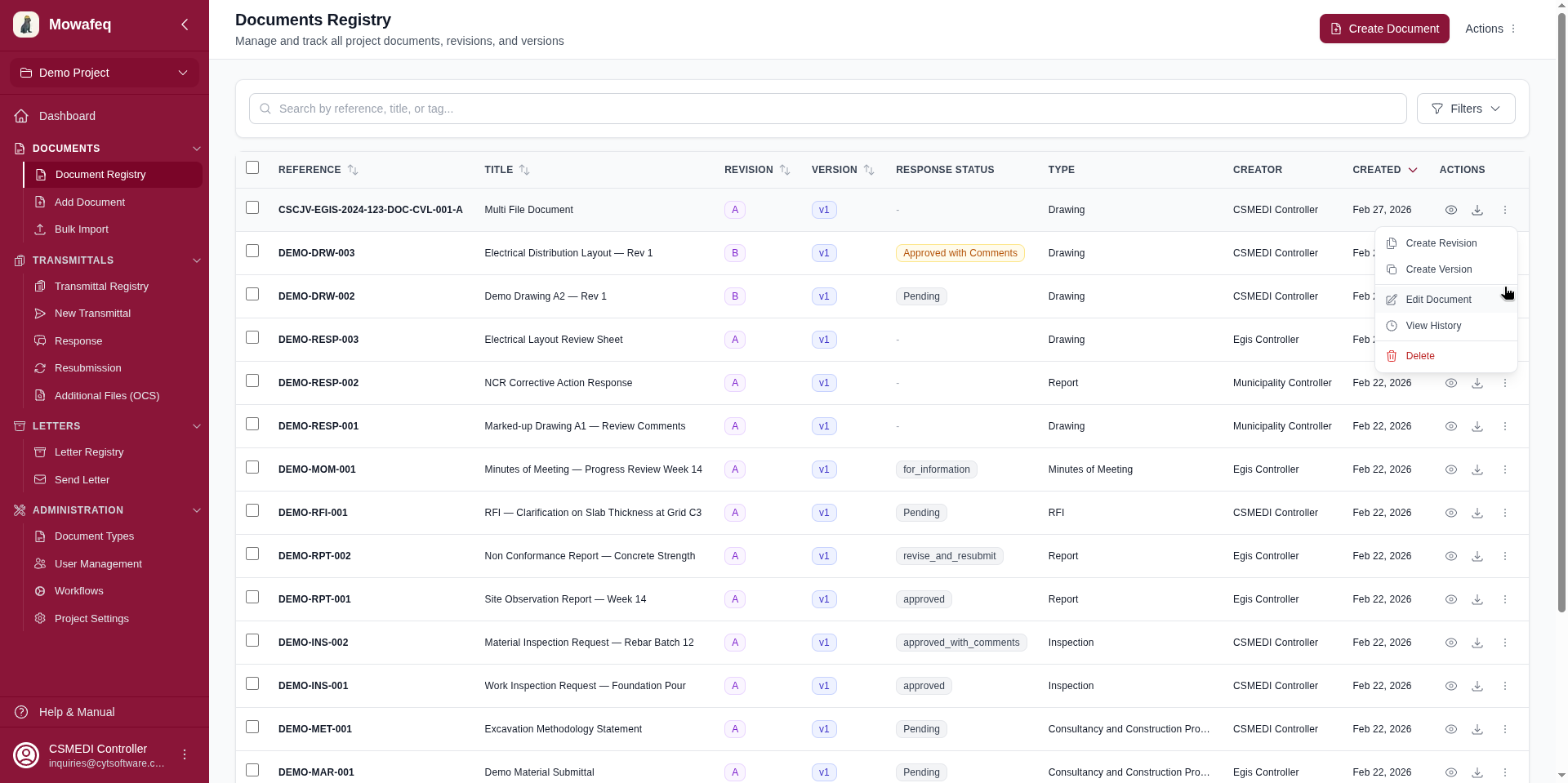
Three-dot menu:
- Create Revision — Open the revision creation panel (hidden for superseded documents).
- Create Version — Open the version creation panel (hidden for superseded documents).
- Edit Document — Navigate to the edit page (only for documents you own; hidden for superseded documents).
- View History — Navigate to the document detail page showing revision and version history.
- Delete — Delete the document with confirmation (only for documents you own).
Bulk Actions
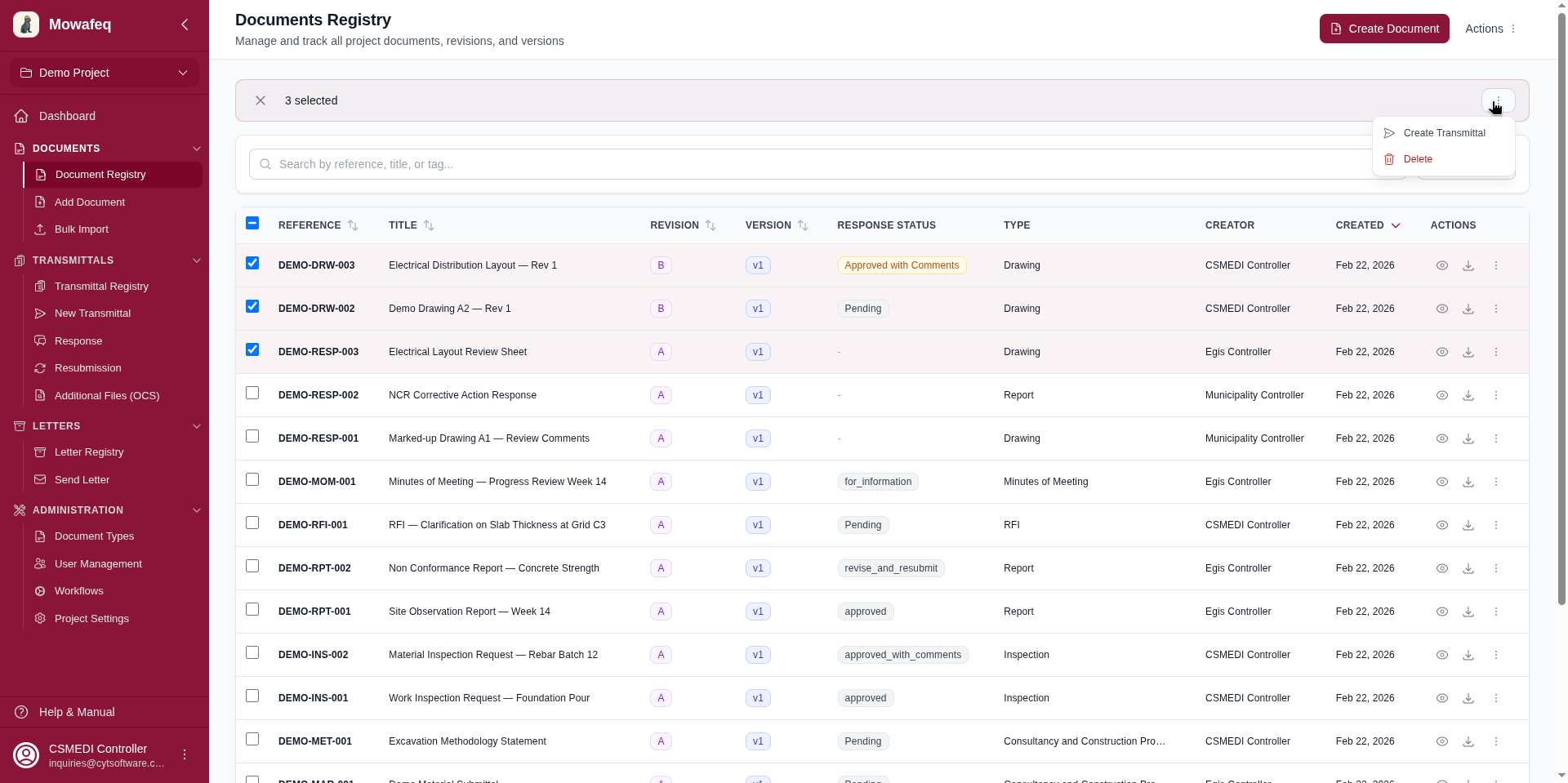
Select documents using the checkboxes in each row. A header checkbox selects all documents on the current page.
After selecting, a toolbar appears with:
- A count of selected documents, plus an option to extend selection to all matching documents (across all pages).
- Create Transmittal — Navigates to the transmittal creation form with the selected documents pre-loaded.
- Delete — Deletes all selected documents you own. Documents that cannot be deleted are reported individually.