Appearance
User Management
Navigating: Sidebar > Administration > User Management.
Video Walkthrough
Add, edit, and manage user accounts and permissions.
Users Tab
Displays all users in your company.
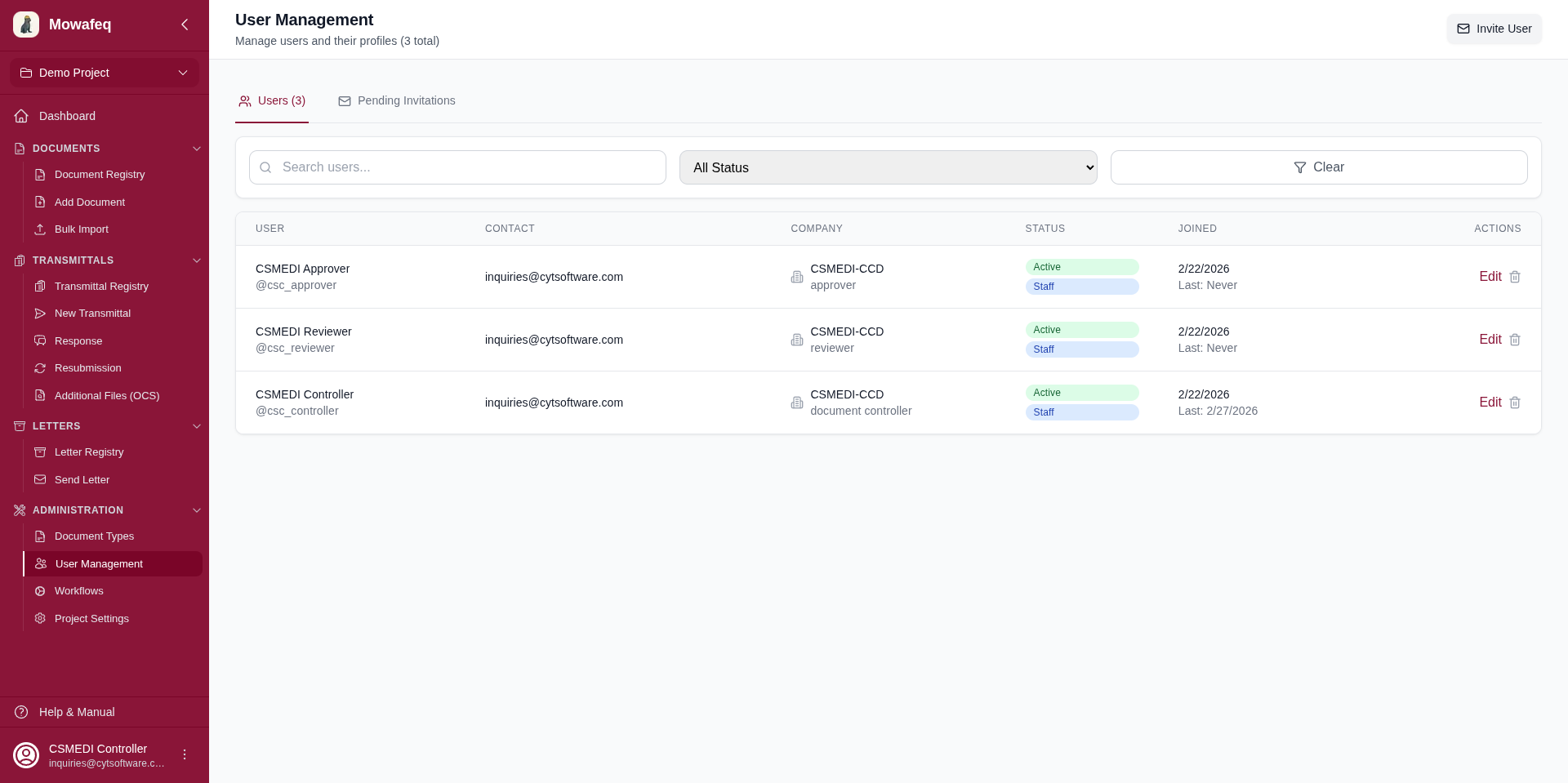
- Columns: Name, Username, Email, Phone, Company, Position, Status (Active/Inactive), Role, Date Joined, Last Login.
- Search: By name, email, or username.
- Filter: By Active/Inactive status.
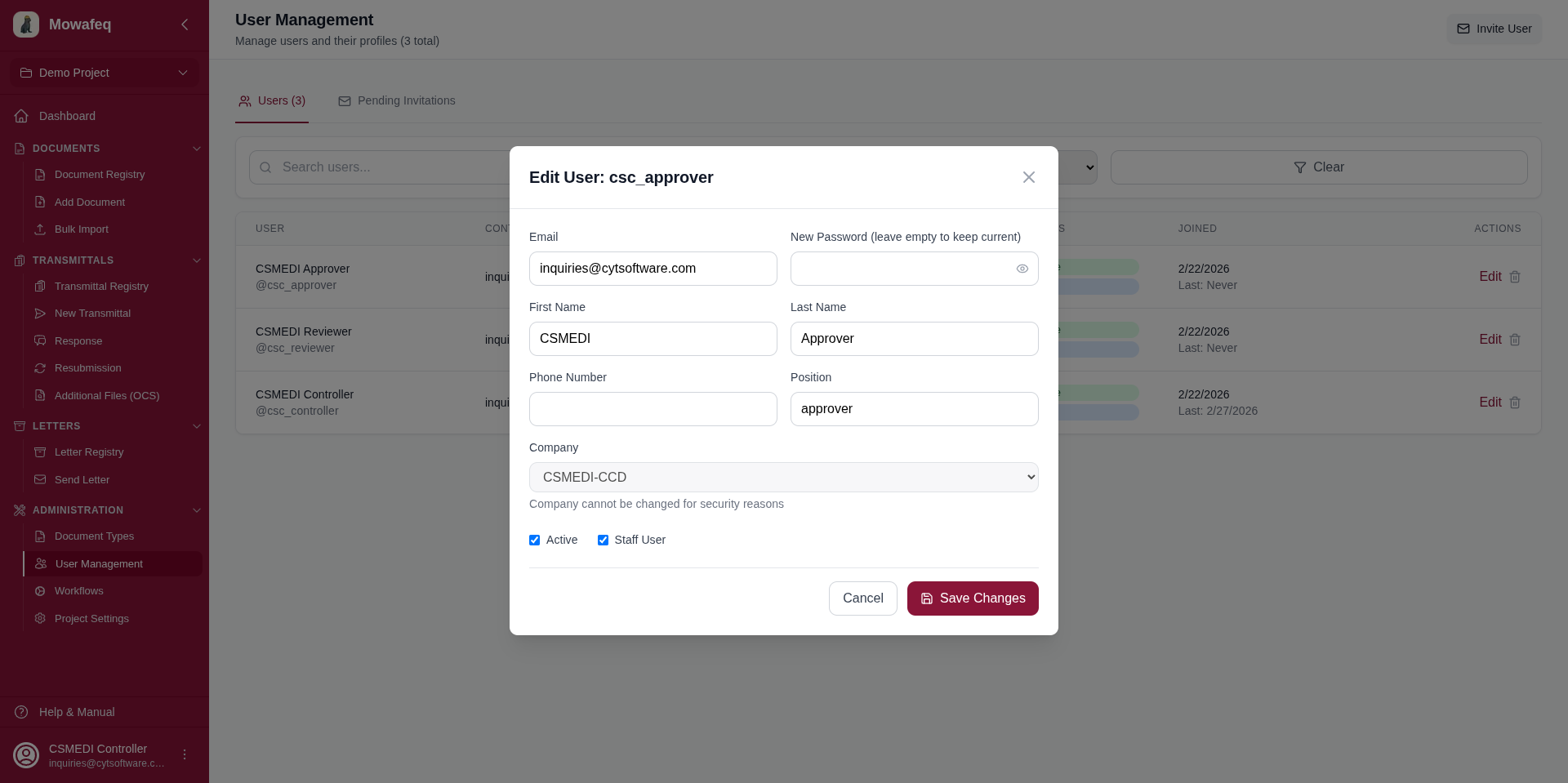
Editing a User
Change email, password, name, phone, position, and active status. Company cannot be changed after creation.
Deleting a User
With confirmation dialog. You cannot delete your own account.
Inviting Users
Click "Invite User" to invite someone to your company.
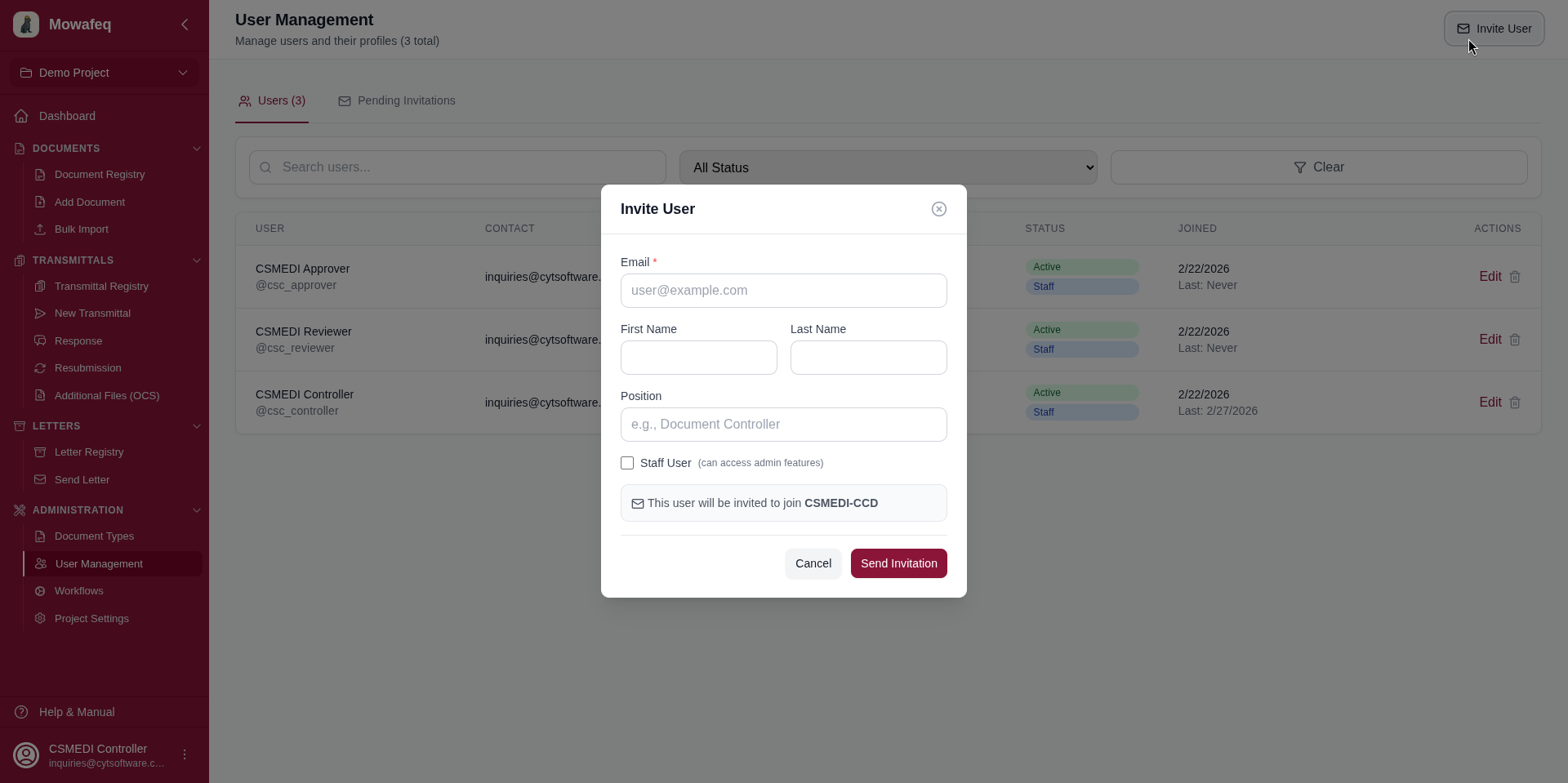
Invitation form: Email (required), first name, last name, position, and whether they should be a Document Controller (staff flag).
Flow
- An invitation email is sent to the invitee with a registration link. The link is also displayed on screen for manual sharing.
- The invitee clicks the link and completes registration by setting a username and password.
- Their account is created with the company, position, and role from the invitation.
Managing Invitations (Pending Invitations Tab)
- View all pending invitations with status.
- Resend: Regenerates the invitation link and resets the 7-day expiry.
- Revoke: Cancels the invitation.
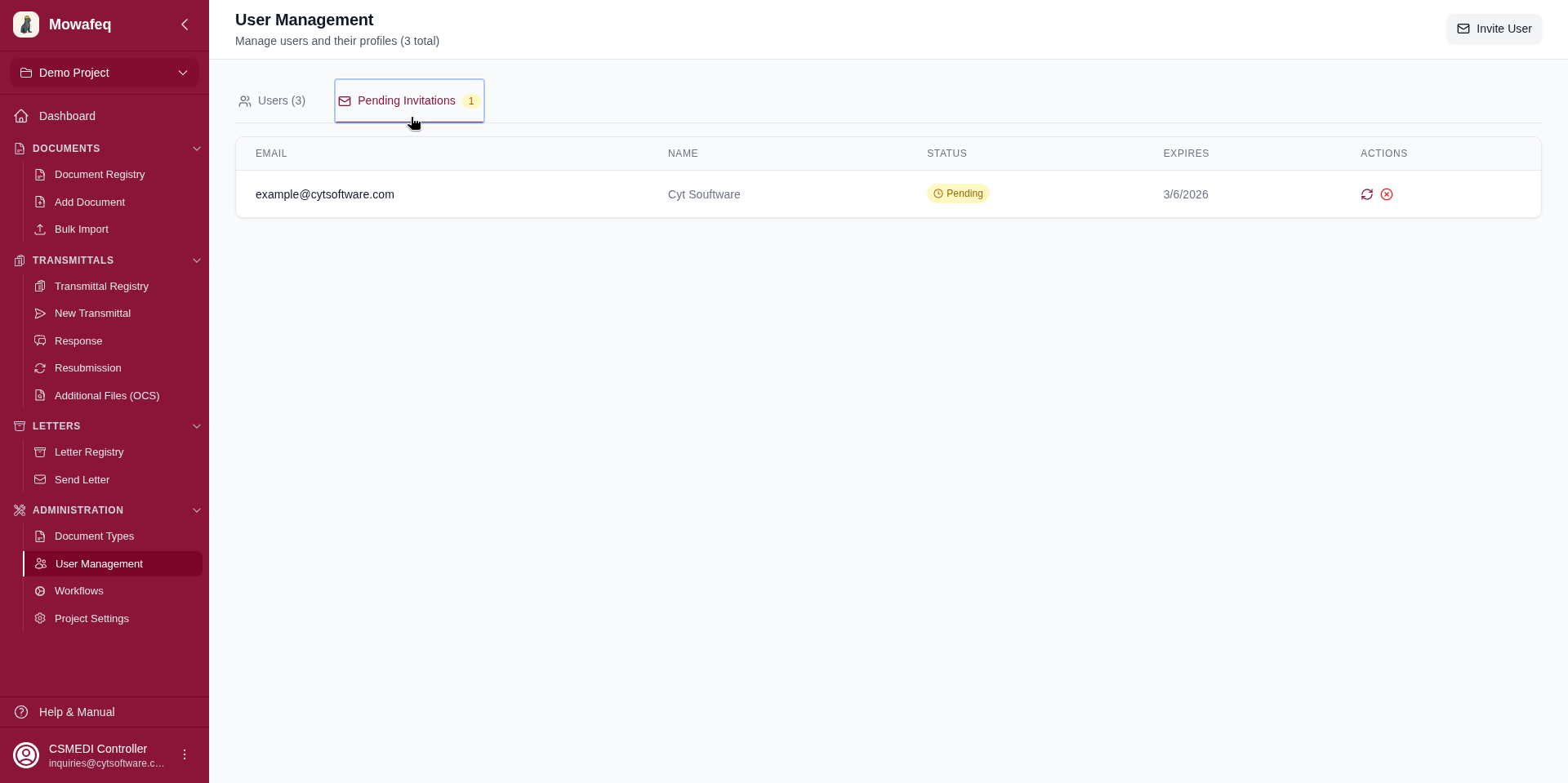
Invitations expire after 7 days if not used.